
You might face a few warnings
Free on Windows 10 and 11. Get it from the Microsoft Store, or download the full version and follow the steps below.
Store version: some features may not work. The full version has everything.
Windows 10 & 11 · no admin rights
What they look like
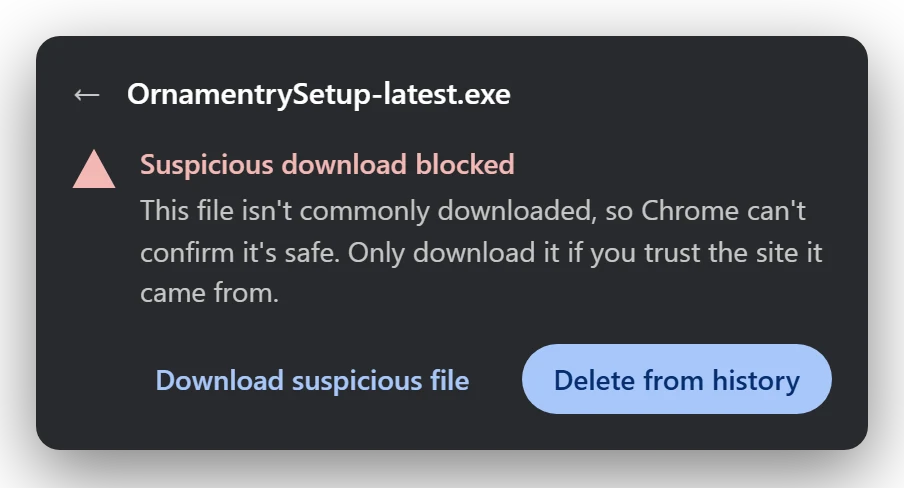
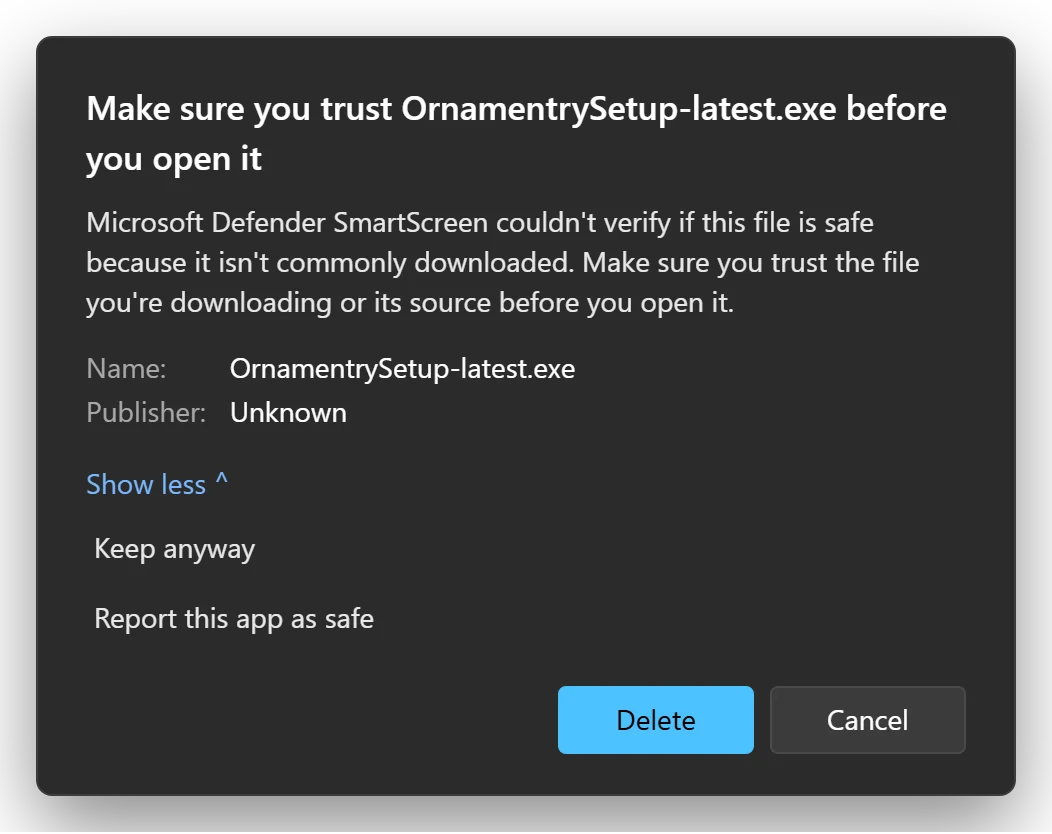
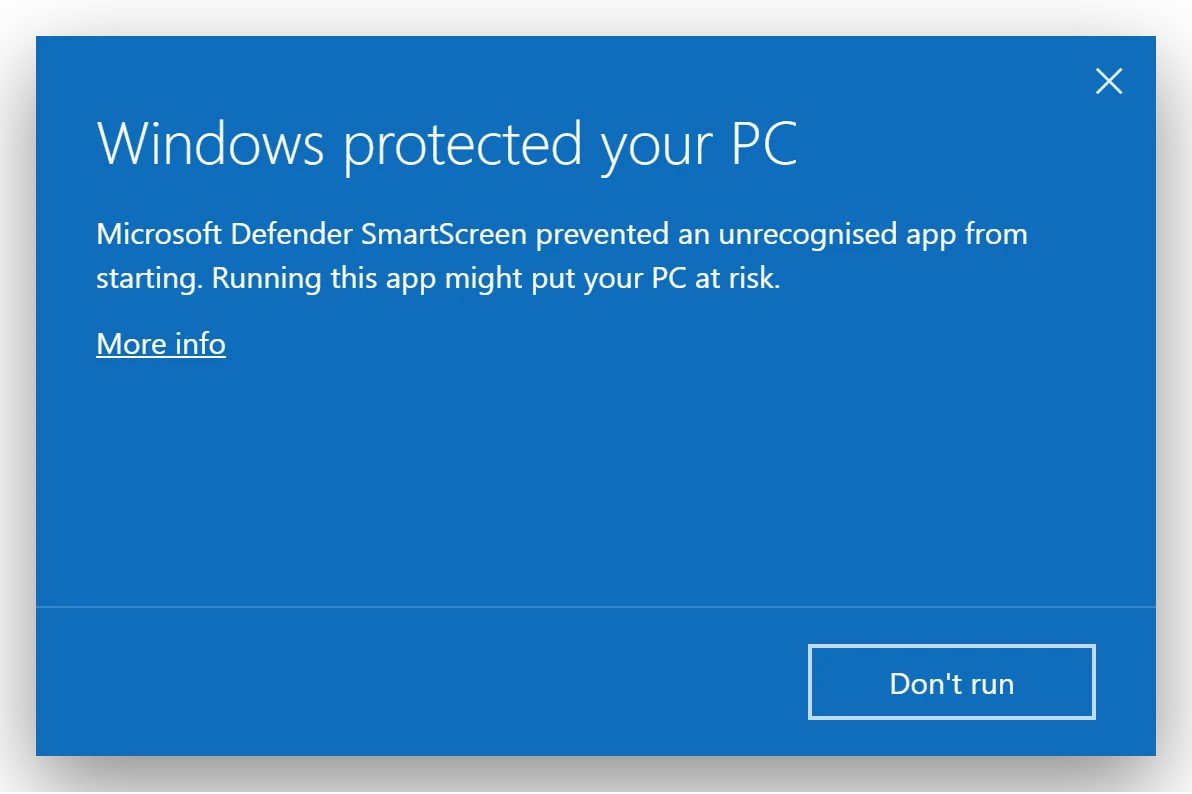
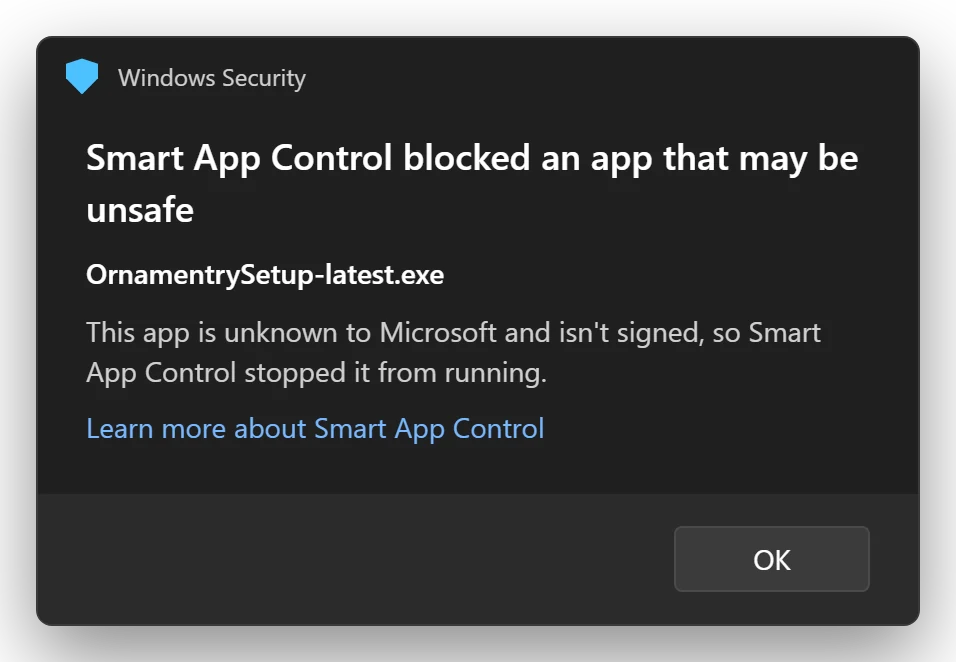
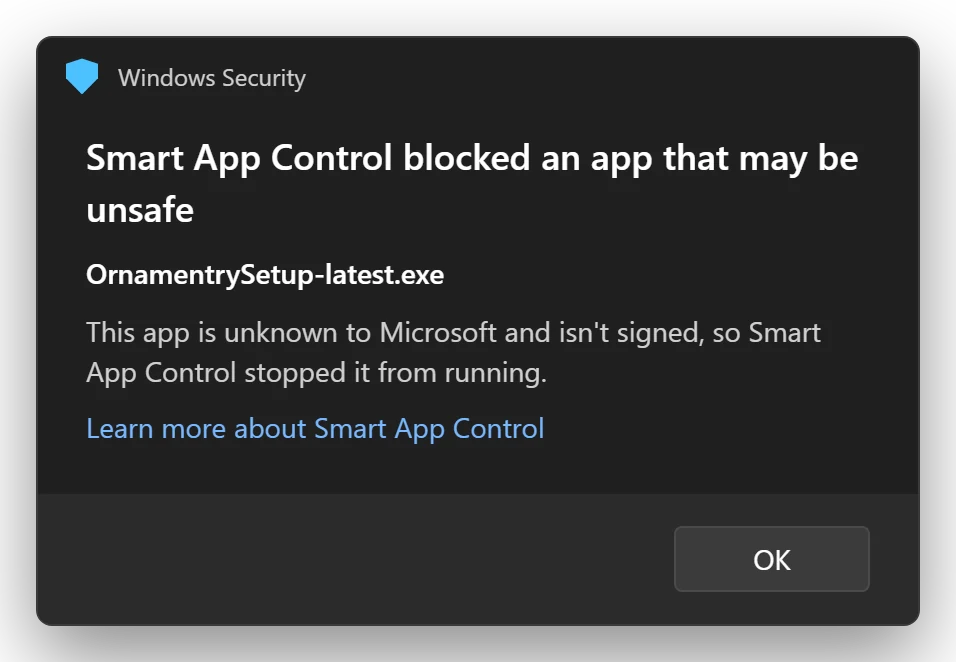
If you download the full version, your browser and Windows may stop you before it installs. Here's what they look like.
Why these warnings appear
Windows and your browser judge every downloaded program on two things: who signed it and how many people have run it before. Ornamentry is new on both counts.
No paid certificate yet
A code-signing certificate puts a verified company name on an app. It costs a few hundred dollars every year, plus identity checks. Ornamentry is a small independent app without one yet, so Windows shows the publisher as “Unknown”.
New to SmartScreen
Microsoft Defender SmartScreen trusts files that lots of people have already downloaded and run safely. Every new Ornamentry version starts with no history, so it's flagged until enough people install it. Even signed apps go through this at first.
Nothing harmful was found
These warnings are about the file being unknown, not dangerous. Microsoft Defender still scans the installer like any other file. The Store version skips the warnings because Microsoft reviews and signs Store apps itself.
What Ornamentry does on your PC
- Installs for your user only, with no administrator rights
- Never injects code into Explorer or patches Windows
- Takes a snapshot before every change, so everything can be undone
- Checks every update against a signed file before installing it
Check the file is really ours
- Only download from ornamentry.com or the Microsoft Store.
- Open PowerShell in your Downloads folder and run
Get-FileHash .\OrnamentrySetup-latest.exe. - The result should match the SHA-256 shown under the download buttons (hover over it for the full value).
How to get past each one
Follow the steps for the warning you see. The highlighted button is the one to click.
-
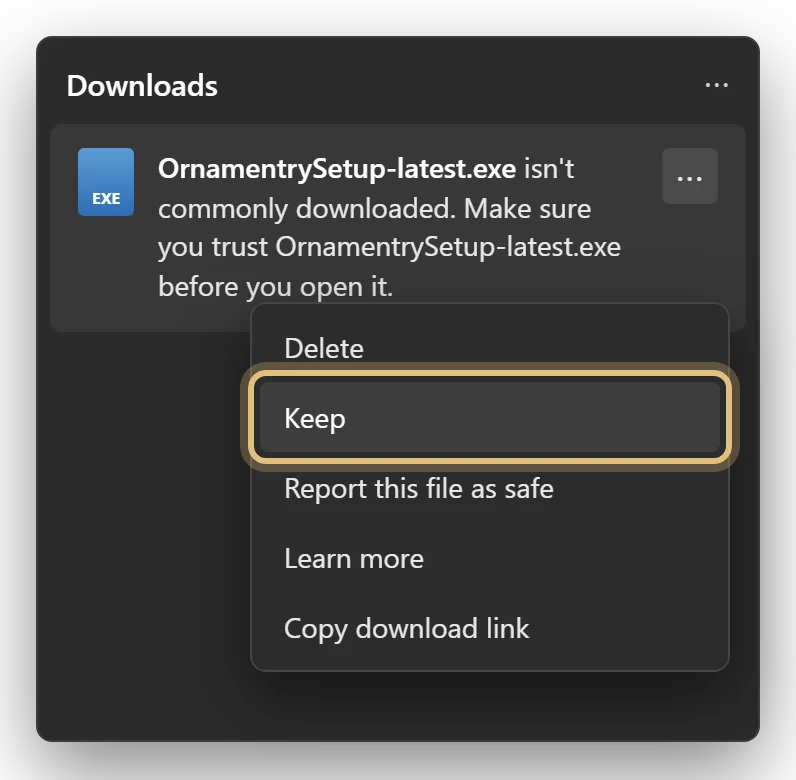
After downloading · Edge
Keep the file
- In the downloads list, click ⋯ → Keep.
- Click Show more → Keep anyway.

-
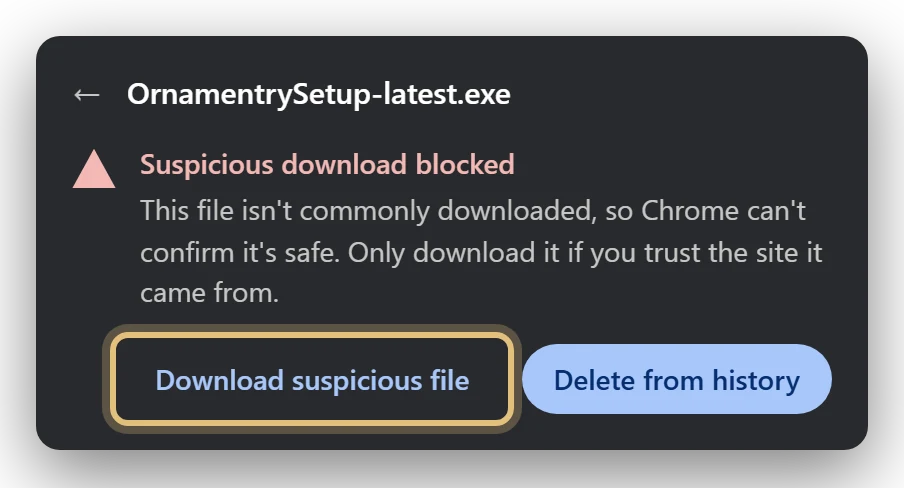
After downloading · Chrome
Download the suspicious file
Chrome says Suspicious download blocked. Click the warning, then Download suspicious file.
-
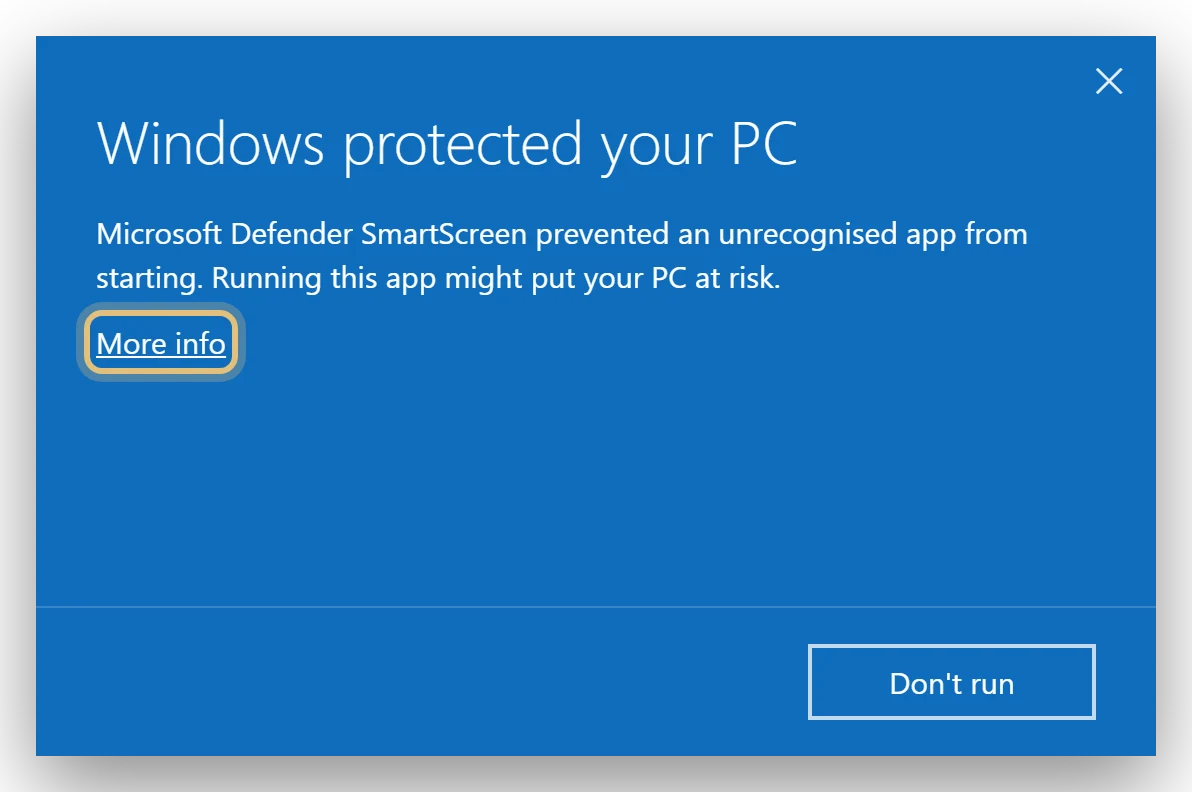
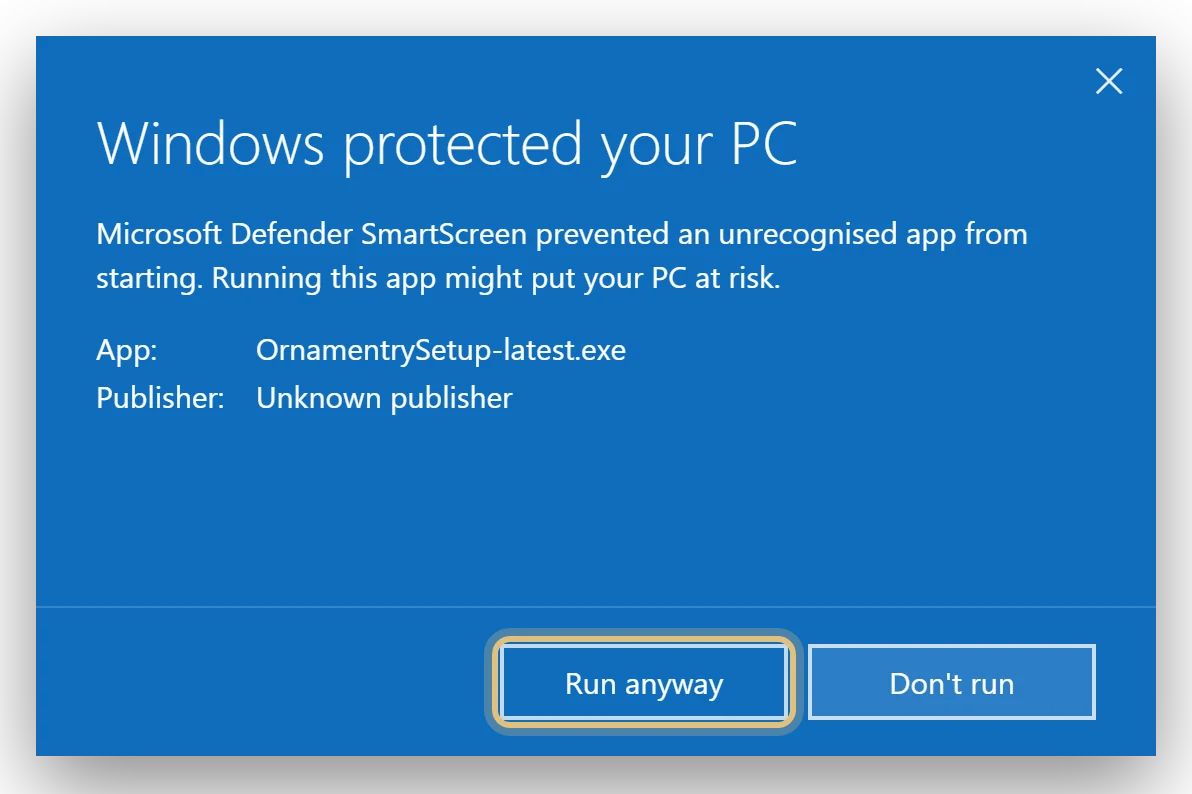
Opening the installer
“Windows protected your PC”
- Click More info.
- Check the app is
OrnamentrySetup-latest.exe, then click Run anyway.
That's the last one. No admin prompt, and updates install from inside the app.
-
Only on some Windows 11 PCs
Blocked by Smart App Control?
There's no way past this one. Get Ornamentry from the Microsoft Store instead. We don't recommend turning Smart App Control off.
Still stuck? Email support@ornamentry.com and tell us which message you saw.